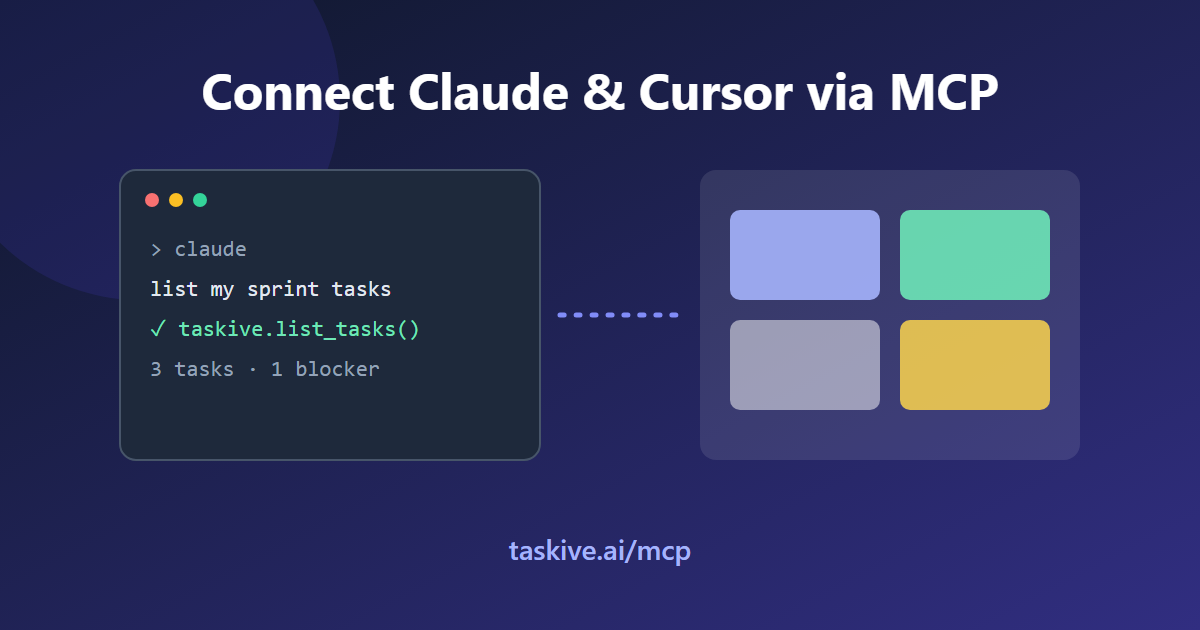
Connect Claude, ChatGPT & Antigravity to Your Project Management (via MCP)
Stop pasting context into every AI session. Connect Claude, ChatGPT, and Antigravity directly to your Taskive board through MCP — one-click OAuth for the apps, a token for the CLIs — and let your assistant read and manage tasks, sprints, and team knowledge.
Your AI assistant is brilliant at writing code, drafting plans, and answering questions — but it has amnesia. Every session starts from zero. It doesn't know what's on your sprint board, which tasks are blocked, or what your team decided last week. So you spend the first ten minutes of every session pasting context back in.
Taskive now fixes that. You can connect your project workspace directly to Claude, ChatGPT, and Google Antigravity through the Model Context Protocol (MCP) — and for the Claude and ChatGPT apps, it's a genuine one-click OAuth sign-in with no tokens to copy. Once connected, your assistant can read and manage your tasks, projects, sprints, and team knowledge without ever leaving the chat.
Here's how it works and how to set it up.
What is MCP, and why does it matter here?
The Model Context Protocol is an open standard that lets AI assistants talk to external tools and data sources through a consistent interface. Instead of every app inventing its own plugin format, an MCP server exposes a set of tools that any MCP-compatible client — Claude, ChatGPT, Cursor, and others — can call.
Taskive runs an MCP server. That means any of these assistants can ask Taskive things like "what are my open tasks?", "move this task to In Review", or "summarize what the team decided about auth this sprint" — and get real answers grounded in your actual workspace, not a hallucination.
The two ways to connect
Different clients authenticate differently, so Taskive supports both paths:
- AI apps (claude.ai, Claude Desktop, ChatGPT) — OAuth, no token. You add Taskive as a custom connector, click connect, and sign in with your Taskive account. That's it. Access is scoped to the organization you're signed into and respects your role permissions.
- Code CLIs and IDEs (Claude Code, Codex, Cursor, Antigravity) — API token. You generate a token in Taskive and drop it into the client's MCP config, or let the Taskive AI Kit wire it for you.
Connecting the Claude apps (claude.ai, Desktop)
- In Claude, open Settings → Connectors.
- Click Add custom connector and paste the Taskive MCP server URL.
- Click connect — a Taskive window opens in your browser. Sign in and click Authorize.
- In any chat, enable the Taskive connector from the tools menu and try: "Call get_my_identity and show my open tasks."
No token, no config file. The connection is bound to whichever Taskive organization you're signed into when you approve.
Connecting ChatGPT
ChatGPT connectors live behind Developer mode (available on paid plans):
- Settings → Connectors → Advanced and enable Developer mode.
- Add a connector, paste the Taskive MCP server URL, and choose OAuth.
- Sign in to Taskive and authorize.
- Enable the connector in a new chat and ask it to list your tasks.
Connecting Google Antigravity (and other code tools)
Antigravity, Claude Code, Codex, and Cursor connect via the Taskive MCP server plus an API token. The fastest route is the Taskive AI Kit:
npx taskive-kit install --platforms antigravity
That wires the MCP server, session hooks, and agent rules into your ~/.gemini config in one command. Claude Code, Codex, and Cursor each have a one-line equivalent — you'll find copy-paste commands (and even a paste-to-your-agent prompt that sets it up for you) in Settings → Integrations inside Taskive.
What your assistant can actually do once connected
This isn't a read-only view. With the connector enabled, your AI can:
- List and filter your tasks, and tell you what to work on next
- Create, update, assign, and move tasks across workflow states
- Read and write sprint plans, epics, and backlog order
- Pull and contribute to your team's shared knowledge — so decisions made in one session carry into the next
- Surface risk and blocker signals from your board
Because every action runs through your own account, it's scoped to your organization and obeys the same role-based permissions as the web app. Your AI can't see or touch anything you can't.
The bigger idea: give your AI a memory
The reason this matters goes beyond convenience. When your assistant can read your board and write back to it, each session stops being an island. Context you build in one conversation — a decision, a plan, a summary — becomes part of the shared workspace your whole team (and their assistants) inherit. That's the difference between an AI that helps you type and an AI that actually understands the project you're working on.
Try it
Every Taskive feature is unlocked during our beta, and connecting your AI assistant is free. Head to Settings → Integrations to grab your connector URL and set it up in a couple of minutes.
Give your AI the context it's been missing — get started at taskive.ai.
Manage your projects with ambient AI
Kanban boards, risk scoring, and MCP context for your AI tools. Free plan, no credit card required.
Try Taskive free →